Configuring UIS Command Properties
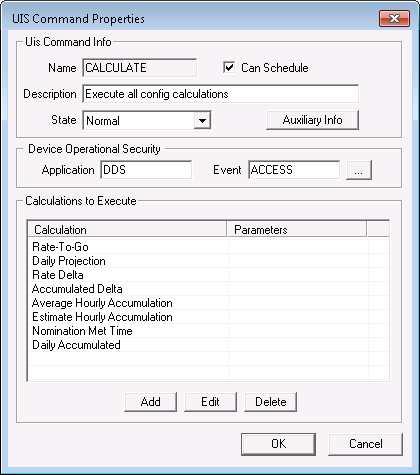
The UIS Command Properties dialog box appears when you select Properties on the UIS Commands page. Use it to add and edit UIS commands specific to GCM. Each set of properties is specific to a corresponding UIS command.
|
| Sample UIS Command Properties Dialog Box |
UIS Command Properties Dialog Box Properties
The following table lists and describes fields found by clicking the Properties button on the UIS Commands dialog box. Each set of properties is specific to a corresponding UIS command.
| Parameter | Description |
|---|---|
|
Name |
The name of the UIS command. |
|
Can Schedule |
Indicates whether it is possible or not to schedule this command in the Master Scheduling Service (MSS). |
|
Description |
Brief description of the UIS command. |
|
State |
The alarm state of the UIS command. |
|
Auxiliary Info |
Click this button to view and edit alarm information. |
|
Application |
Security application used to validate users of the UIS command. |
|
Event |
Security event used to validate users of the UIS command. |
|
Calculation |
This list is made up of the calculations affected by the selected or new UIS command. Each time this command executes, the selected calculations are performed. |
|
Displays calculation parameters. Parameters are currently only necessary for Estimate Hourly Accumulation. For more information, see Command Parameters. Note: The maximum length of the command parameter string for a Send UIS Command message is 1200 characters. CygNet Software will report if a UIS Command message exceeds the maximum parameter length of 1200 characters. |
|
|
Add |
Click this button to add new calculations that you want this UIS command to use. |
|
Edit |
Highlight an already-existing calculation and click Edit to edit the calculation's parameters. For more information, see Command Parameters. |
|
Delete |
Delete unwanted calculations. |


